How to connect to your Ventrilo Server

  1. Download the Ventrilo Client
    Get the free Ventrilo Client for Windows, macOS and Linux from our download page.

  2. Install the Ventrilo Client
    Run the installer from wherever you saved the setup file. It should add a Ventrilo icon to your desktop.

  3. Start the Ventrilo Client
    Run the Ventrilo Client either from the icon on your desktop or from your start menu.

  4. Setting up a Ventrilo username
    Click on the "User name" button at the top left of the client.

    Add user name

  5. Create your specific username
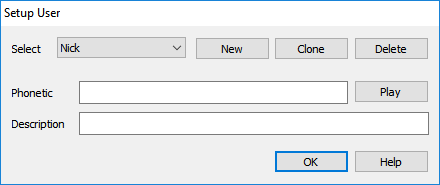
    Click the new button. A window will pop up where you can enter the username you want others to identify you with when you log onto their Ventrilo server. Click ok to return to the "Setup User" box. It should show your new username in the top left. Click ok to continue.

    Add new user

  6. Add your Ventrilo Server to the Server List
    Click on the "Server" button, right below the "User name" button you clicked on to setup your username.
    Add server button

  7. Add your Ventrilo Server Details
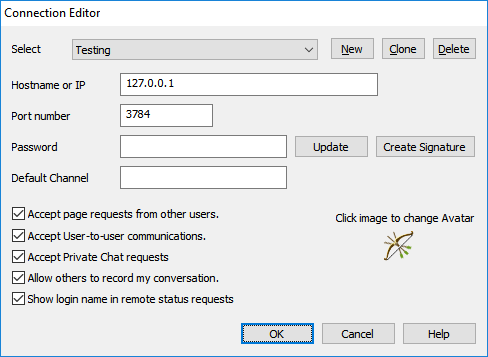
    The "Connection Editor" will open in a new window. Click the new button. A window will pop up where you can enter the name you want to use to identify the server you're trying to connect to. Enter the server name and click ok, which will return you to the "Connection Editor".

    Connection Editor Window

    1. Enter in the IP/Hostname for the server. Example: 127.0.0.1
    2. Enter in the port for the server. Example: 3784
    3. The server you are trying to connect to may require a password. If you were given a server password to use, enter the password in the server password box
    4. Hit OK to continue.

  8. Connect to the server! Phew! Finally!
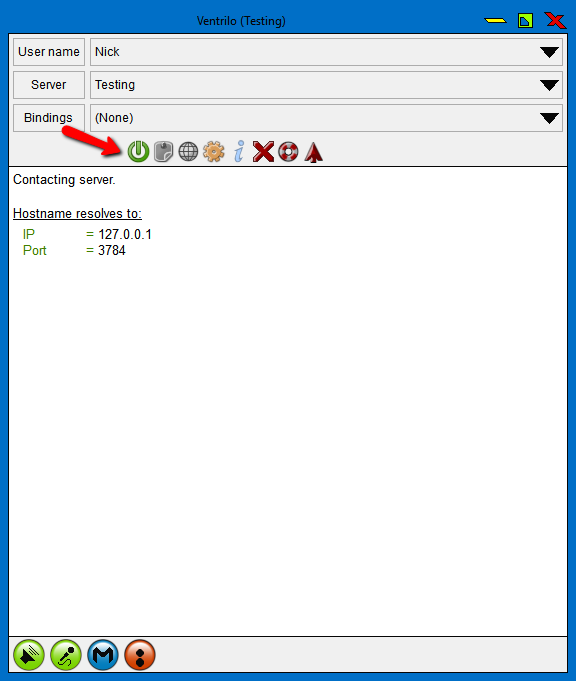
    Click the Connect button on the Toolbar of the Ventrilo Client

    Connection Button

If you were not able to connect, make sure everything matches the information exactly how you were given. Most errors caused by copy/paste errors, extra spaces on the end of the server information, or typing in the information incorrectly.

Still stuck? Open a trouble ticket at https://cp.light-speed.com/trouble-tickets.php or see all Ventrilo Server guides.

© Copyright 2004-2026 LightSpeed Gaming LLC
Ventrilo is a Trademark of LightSpeed Gaming LLC.

Try GameVox — next-gen voice chat for gamers (open beta)